


Plugin Overview
Welcome to your SinceCode Booking Dashboard! This is your command center for managing all aspects of your booking system. From here, you can view key metrics, manage staff schedules, handle bookings, and access all the tools you need to run your business efficiently.
1 Dashboard Overview
When you first log in, you’ll see your main dashboard with several key elements:
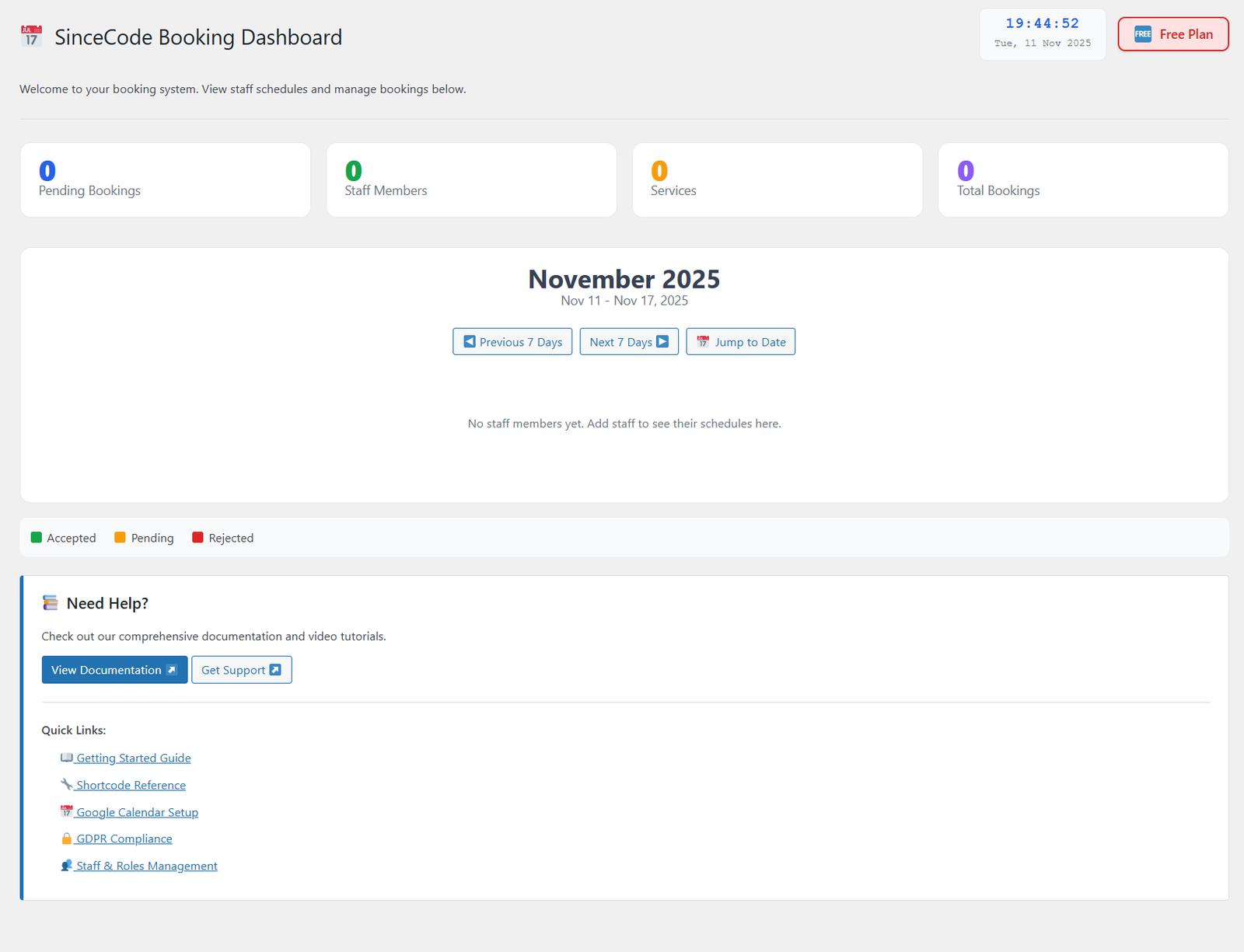
Your SinceCode Booking Dashboard – Main view
Quick Stats Cards
At the top of your dashboard, you’ll find four important metric cards that give you an at-a-glance view of your booking system:
- 📋 Pending Bookings – Shows the number of booking requests waiting for your approval or response
- 👥 Staff Members – Displays the total number of staff members currently set up in your system
- ✨ Services – Shows the number of services you offer that customers can book
- 📊 Total Bookings – Your complete count of all bookings received through the system
Calendar View
The central calendar displays your booking schedule for the current week. You can:
- Navigate weeks – Use “Previous 7 Days” and “Next 7 Days” buttons to move through your schedule
- Jump to specific dates – Click “Jump to Date” to quickly navigate to any date
- View staff schedules – Once you add staff members, their availability and bookings will appear here
Booking Status Legend
At the bottom of the calendar, you’ll see a color-coded legend:
- Accepted – Confirmed bookings
- Pending – Awaiting approval
- Rejected – Declined bookings
Quick Access Panel
The “Need Help?” section provides quick access to:
- View Documentation – Access comprehensive guides and tutorials (like this one!)
- Get Support – Contact the SinceCode support team
- Quick Links – Fast access to common setup tasks like Getting Started Guide, Shortcode Reference, Google Calendar Setup, GDPR Compliance, and Staff & Roles Management
2 Navigation Menu
The left sidebar menu gives you access to all the features and settings in SinceCode Booking. Let’s explore each menu item:
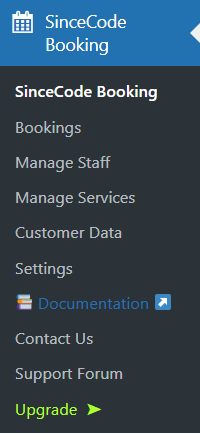
SinceCode Booking navigation menu
📅 SinceCode Booking
The main menu item – clicking this takes you back to the dashboard home screen.
📋 Bookings
View, manage, and respond to all booking requests. Here you can see booking details, accept or reject appointments, and communicate with customers about their bookings.
👥 Manage Staff
Add, edit, and manage your team members. Set up staff profiles, define their availability, and manage their schedules.
✨ Manage Services
Create and configure the services you offer. Define service names, descriptions, duration, pricing, and other details that customers will see when booking.
📊 Customer Data
View your complete customer list and manage their data preferences. Track which customers have opted in for marketing communications and SMS consent.
⚠️ GDPR Actions Available
This section includes GDPR-related tools to help you manage customer data:
- Export Data – Export customer data upon request
- Anonymize – Anonymize customer information
- Delete All Data – Permanently delete customer data
⚠️ These actions are permanent and cannot be undone. Please ensure you have customer consent before proceeding.
Note: These features are provided to assist with GDPR compliance. However, we do not guarantee full GDPR compliance by using these features alone. Please consult with legal counsel to ensure your complete compliance with GDPR regulations.
⚙️ Settings
Configure global settings for your booking system including business hours, time zones, email notifications, booking rules, and general preferences.
📚 Documentation
Access comprehensive help documentation, video tutorials, and guides (you’re reading it now!). This is your go-to resource for learning how to use all features of SinceCode Booking.
📧 Contact Us
Get in touch with the SinceCode support team. Submit questions, report issues, or request assistance with your booking system.
💬 Support Forum
Join the community! Browse questions from other users, share tips, and get help from both the SinceCode team and fellow users.
⭐ Upgrade
Unlock premium features! Click here to upgrade from the Free plan to the Pro plan and access advanced functionality like payment processing, SMS reminders, custom branding, and more.
💡 Pro Tip
Familiarize yourself with the dashboard and menu structure early on. Understanding where everything is located will help you manage your bookings more efficiently and save time in the long run!
What’s Next?
Now that you understand your dashboard and navigation, you’re ready to start setting up your booking system:
- Add Your First Staff Member – Set up team members who will handle bookings
- Create Your Services – Define what services customers can book
- Configure Settings – Set your business hours, time zone, and preferences
- Create Your Booking Form – Build the form that customers will use to book appointments