


Customising Your Booking Form
Match Your Brand – Customize the appearance of your booking forms to create a seamless experience that reflects your business’s unique style and branding. Professional, branded booking forms build trust and enhance your customers’ experience.
📍 Accessing Customization Settings
To customize your booking forms, click on Settings in the left sidebar menu, then select the Customise tab.
1 Visual Customization Options
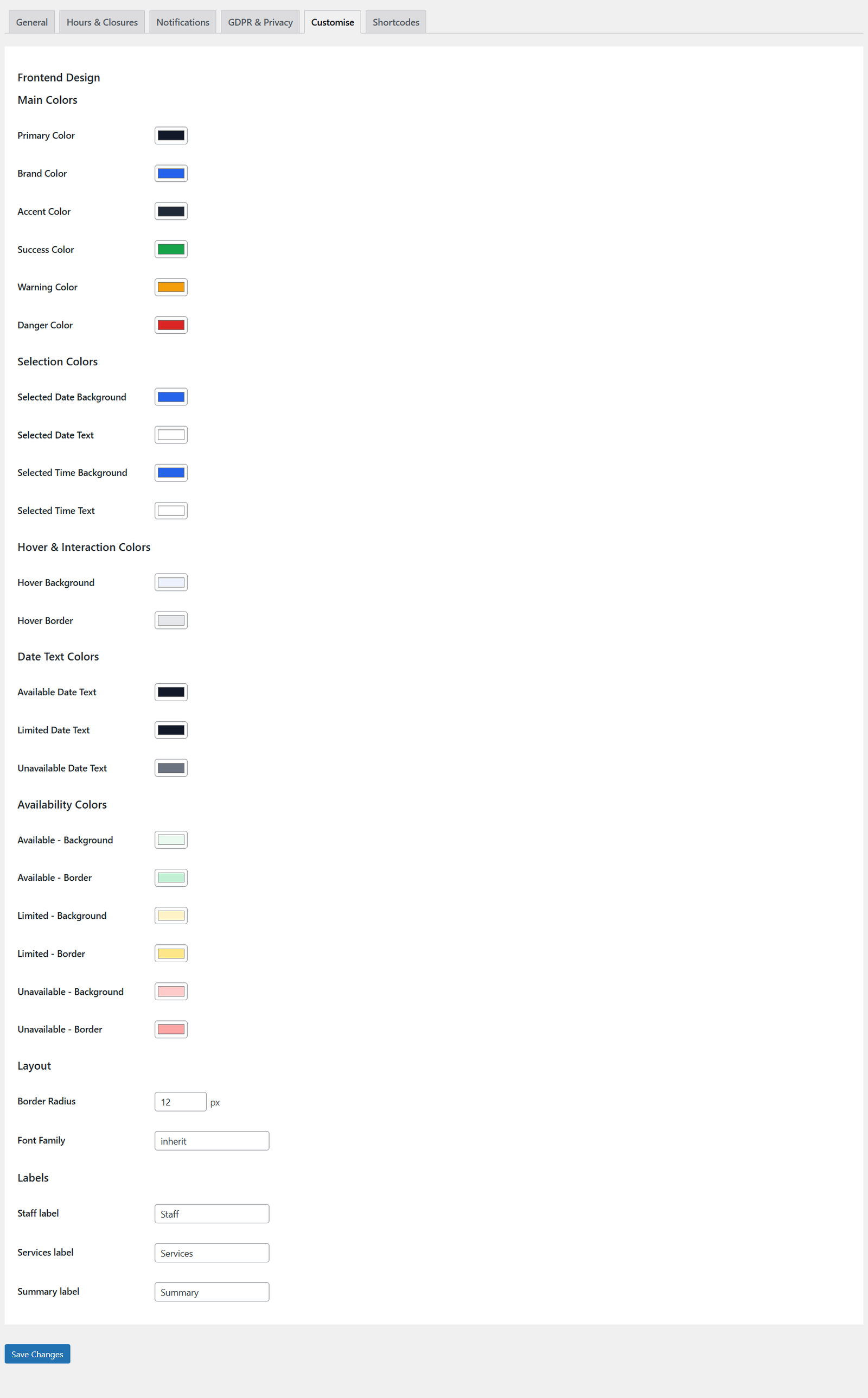
Visual customization options for your booking forms
The Customise tab provides various options to adjust the look and feel of your booking forms:
Customization Categories
- Colour Schemes
Adjust primary colours, accent colours, and background colours to match your brand palette. Use colour pickers to select exact shades. - Typography
Choose fonts that match your website’s style. Select font families, sizes, and weights for different text elements. - Button Styles
Customize button colours, hover effects, border radius, and sizing to create a cohesive look with your website. - Form Layout
Adjust spacing, padding, and alignment of form elements to improve readability and user experience. - Visual Elements
Control borders, shadows, corners, and other design details that affect the overall appearance.
2 Best Practices for Customization
Colour Selection
- Brand Consistency – Use your company’s official brand colours for primary elements
- Contrast – Ensure sufficient contrast between text and backgrounds for readability
- Accessibility – Choose colours that are accessible to users with visual impairments
- Accent Colours – Use accent colours sparingly to highlight important actions
Typography Tips
- Readability First – Choose clear, easy-to-read fonts over decorative ones
- Font Pairing – Use 2-3 complementary fonts maximum (heading, body, accent)
- Size Hierarchy – Create clear visual hierarchy with different font sizes
- Line Spacing – Adequate spacing improves readability, especially on mobile
Layout Considerations
- White Space – Don’t overcrowd the form; give elements room to breathe
- Mobile-Friendly – Ensure your design works well on all screen sizes
- Logical Flow – Arrange elements in a natural, intuitive order
- Focus States – Make it clear which field is active
💡 Brand Consistency
Your booking form is an extension of your brand. Taking time to customise it creates a professional, cohesive experience that builds trust and reinforces your brand identity throughout the entire customer journey.
3 Testing Your Customizations
After making customization changes, it’s important to test how they look in practice:
- Save Your Changes – Click the save button at the bottom of the Customise page
- View on Your Website – Navigate to the page where your booking form is embedded
- Test on Multiple Devices – Check how it looks on desktop, tablet, and mobile
- Try Different Browsers – Verify appearance in Chrome, Firefox, Safari, and Edge
- Get Feedback – Ask team members or friends for their opinions
- Refine as Needed – Make adjustments based on your testing
📱 Mobile Testing Is Critical
Many customers will book on mobile devices. Always test your customisations on actual phones and tablets, not just by resizing your browser window, to ensure a great mobile experience.
4 Common Customization Scenarios
Scenario 1: Corporate Professional
- Conservative color palette (navy, gray, white)
- Clean, professional fonts (sans-serif)
- Minimal design with clear structure
- Subtle shadows and borders
Scenario 2: Creative & Vibrant
- Bold, colorful brand colors
- Unique fonts that reflect personality
- Rounded corners and playful elements
- Higher contrast and visual interest
Scenario 3: Luxury & Elegant
- Sophisticated color schemes (black, gold, white)
- Elegant serif or refined sans-serif fonts
- Generous white space
- Subtle animations and transitions
Scenario 4: Wellness & Spa
- Calming colors (soft blues, greens, earth tones)
- Gentle, readable fonts
- Soft corners and minimal harsh lines
- Peaceful, uncluttered design
5 Advanced Customization Tips
- Company Logo – Add your logo URL in the General settings tab to display it on booking forms
- Consistency Across Pages – Match your booking form style to your main website
- Seasonal Updates – Consider updating colors for holidays or special events
- A/B Testing – Try different styles to see which converts better
- User Feedback – Listen to customer comments about the booking experience
- Regular Reviews – Periodically review and refresh your design
🎨 Design Resources
Not a designer? Use free tools like Coolors.co for colour palette inspiration, or Google Fonts to find beautiful, professional font combinations that work well together.
✅ Your Booking Form Is Styled!
With your customisations in place, your booking form now reflects your brand identity and provides a professional experience for your customers. Remember to save your changes and test thoroughly across different devices!
Quick Customization Checklist
- ✓ Primary brand colors applied
- ✓ Fonts match website style
- ✓ Button colors and hover states set
- ✓ Text contrast is readable
- ✓ Layout spacing looks good
- ✓ Tested on mobile devices
- ✓ Tested in multiple browsers
- ✓ Company logo added (if desired)
- ✓ Changes saved successfully