


Adding Staff Members
Building Your Team – Staff members are the heart of your booking system. Each staff member can have their own schedule, availability, and profile. This guide will walk you through adding your first team member to the SinceCode Booking system.
1 Navigate to Manage Staff
To add a new staff member:
- From your dashboard, click on Manage Staff in the left sidebar menu
- Click the Add New Staff button to begin creating a staff profile
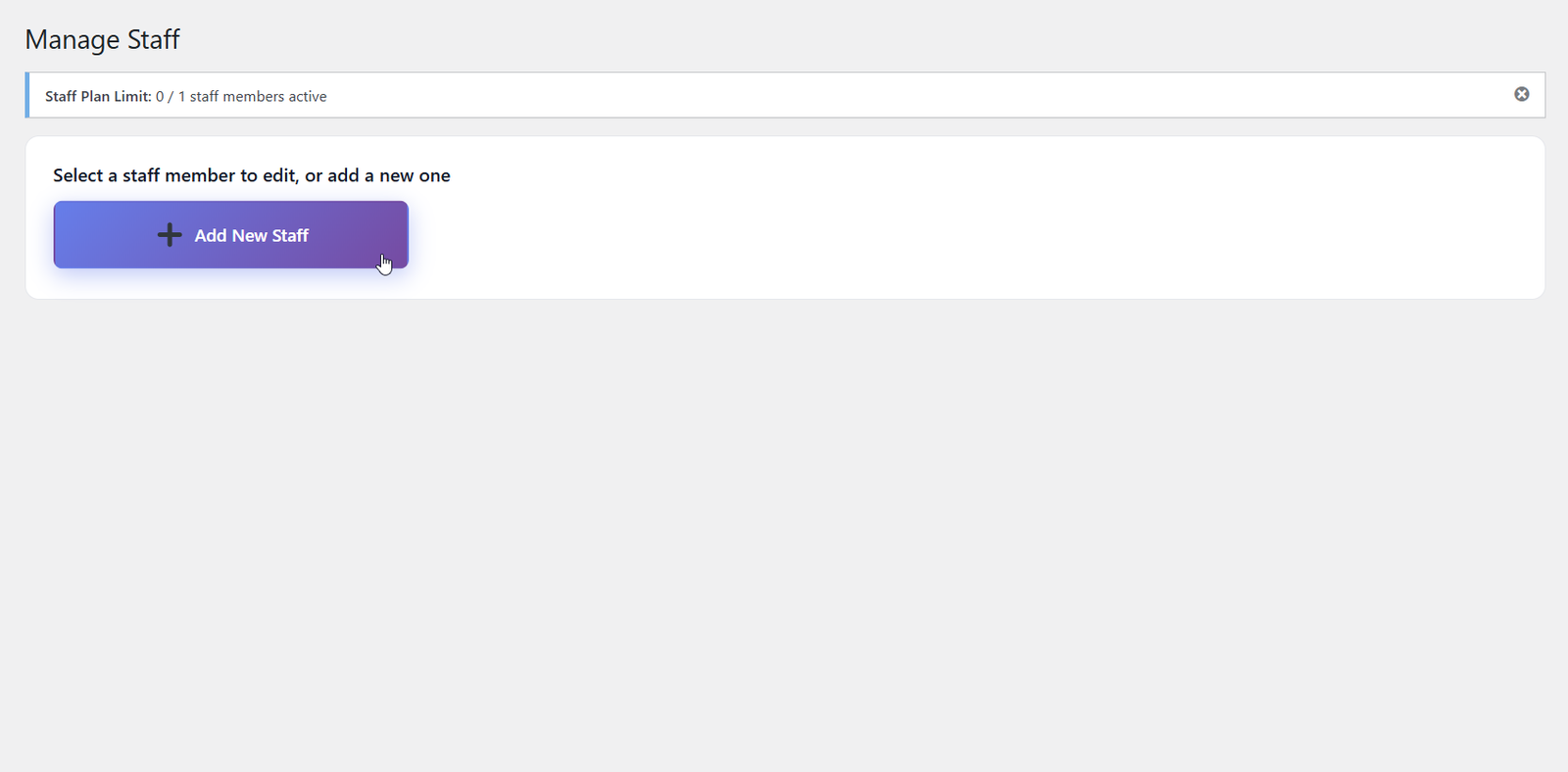
Click the Add New Staff button to begin
2 Enter Staff Details
You’ll now see the staff member creation form. Fill in the following information:
- Name – The staff member’s full name (required)
- Phone – Contact phone number (required)
- Email – Staff member’s email address (required)
- Profile Picture – Upload a photo (optional but recommended)
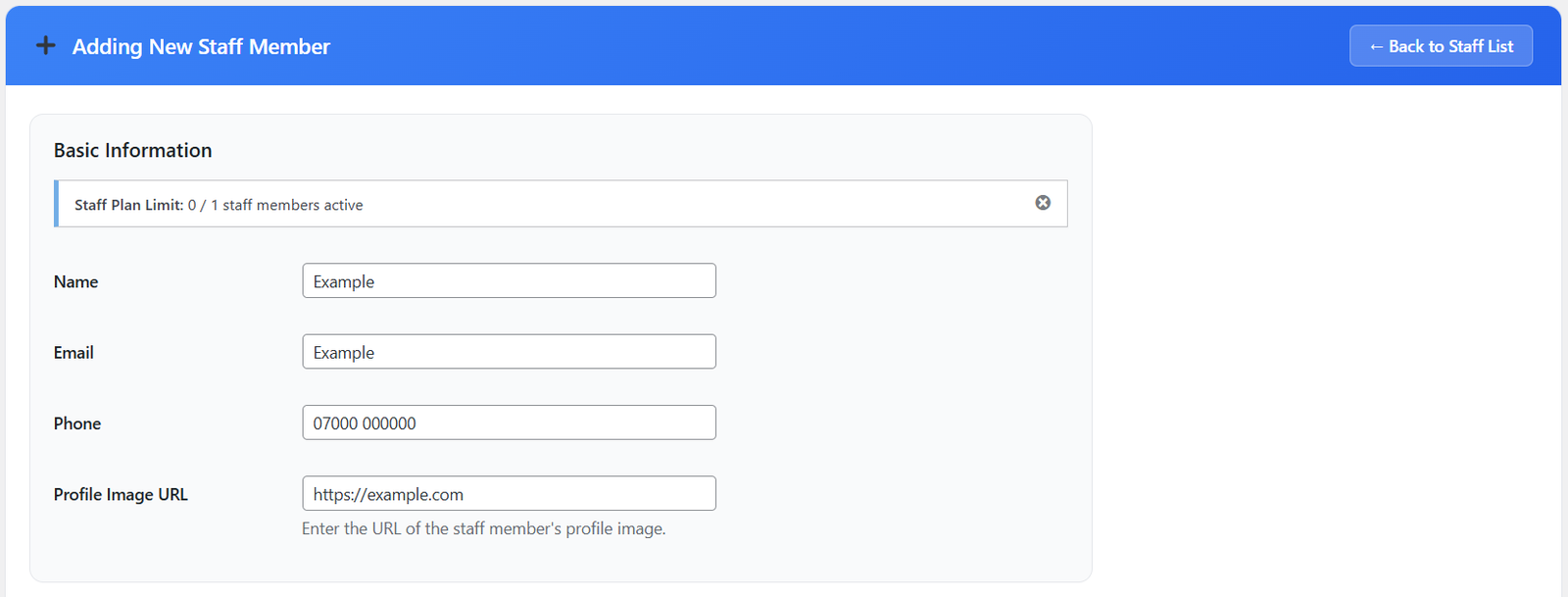
Enter all necessary staff member details
💡 Tip
Adding a profile picture helps customers recognize your team members and creates a more personal booking experience!
3 Set Working Hours
Scroll down to the Working Hours section. Here you’ll define when this staff member is available to take bookings.
For each day of the week, you can:
- Toggle the day on or off to indicate if the staff member works that day
- Set start and end times for their working hours
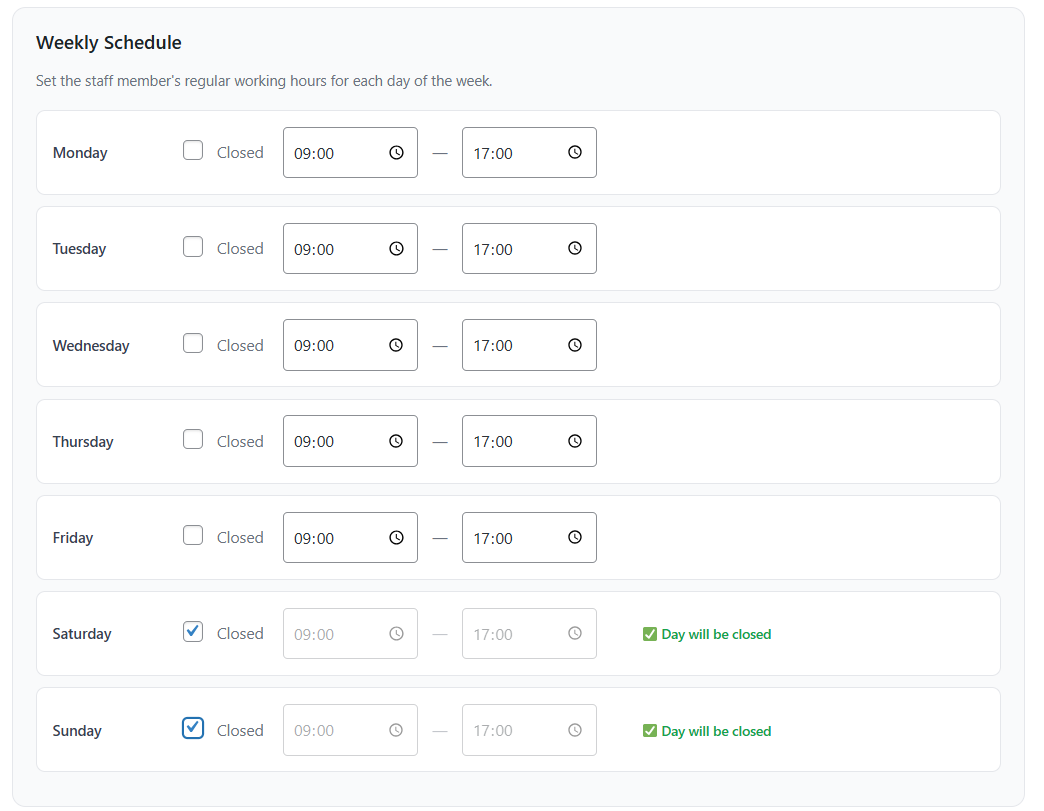
Configure working hours for each day of the week
⚠️ Important
Staff member working hours must not conflict with the store opening hours found in the main Settings tab. Staff cannot be available outside of your business’s operating hours.
4 Holidays & Time Off PRO
⭐ Pro Feature
Holidays & Time Off management is a premium feature. You’ll need to upgrade to the Pro plan to use full day holidays and custom hours. Click the Upgrade button in the sidebar menu to unlock this feature and access advanced scheduling capabilities!
The Holidays & Time Off section allows you to manage when staff members are unavailable. This section has two parts:
Full Day Holidays
For days when a staff member is completely unavailable:
- Select the date from the calendar picker
- Click Add Holiday/Time Off to add more days
- The staff member will be marked as unavailable for the entire day
- Customers will not be able to book appointments with this staff member on this date
Custom Hours
For days when a staff member needs to start late or finish early:
- Choose the relevant day from the dropdown
- Set the adjusted start and end times
- Click Add Custom Hours to add more days
- This will override their normal working hours for that specific day
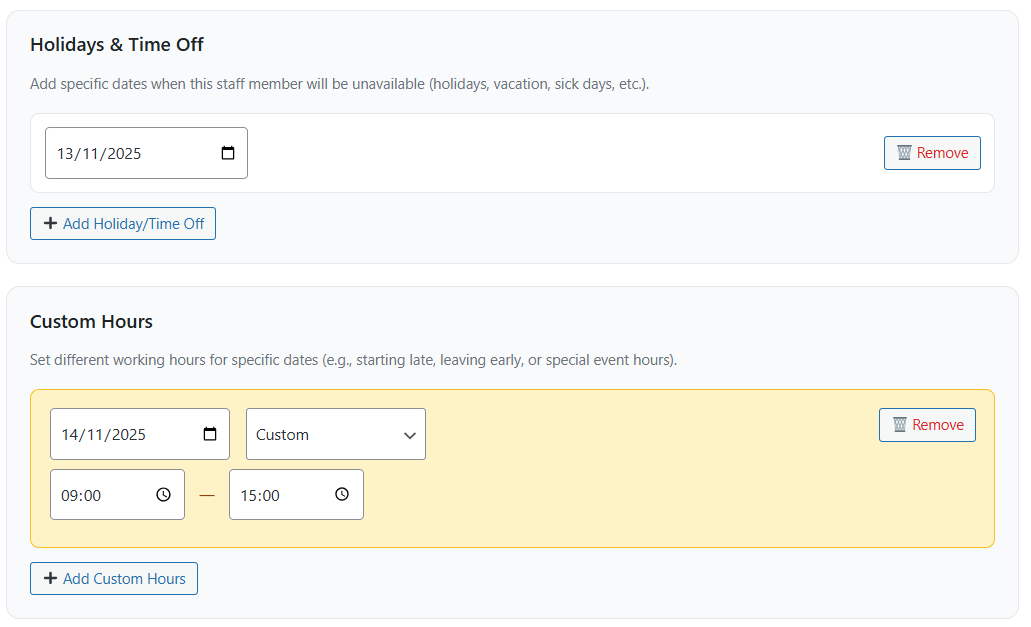
Manage holidays and custom hours for staff members
💡 Pro Tip
Use the custom hours feature for appointments, meetings, or any situation where a staff member’s availability temporarily changes. This keeps your calendar accurate without permanently modifying their regular schedule.
✅ You’re Done!
Once you’ve entered all the information:
- Review all the details to ensure accuracy
- Click the Add Staff Member button
- Your new staff member is now active and ready to accept bookings!
The staff member will now appear on your dashboard calendar and be available for customer bookings during their configured hours.
What’s Next?
Now that you’ve added your first staff member, here are your next steps:
- Add More Staff Members – Repeat this process for additional team members
- Create Services – Set up the services that staff can provide to customers
- Assign Services to Staff – Link services to specific staff members in the Manage Services section