


Creating Services
Define Your Offerings – Services are what your customers will book appointments for. Each service can have its own duration, price, description, and assigned staff member. This guide will show you how to create and manage your services.
1 Navigate to Manage Services
To create a new service:
- From your dashboard, click on Manage Services in the left sidebar menu
- You’ll be taken to the Add New Service page
2 Enter Service Details
Fill in all the required information for your new service:
- Staff Member – Select which staff member will provide this service from the dropdown menu (required)
- Service Name – Enter a clear, descriptive name for the service (required)
- Duration (Minutes) – How long the service takes to complete in minutes (required)
- Price – The selling price for this service (required)
- Description – A short description that customers will see when booking (required)
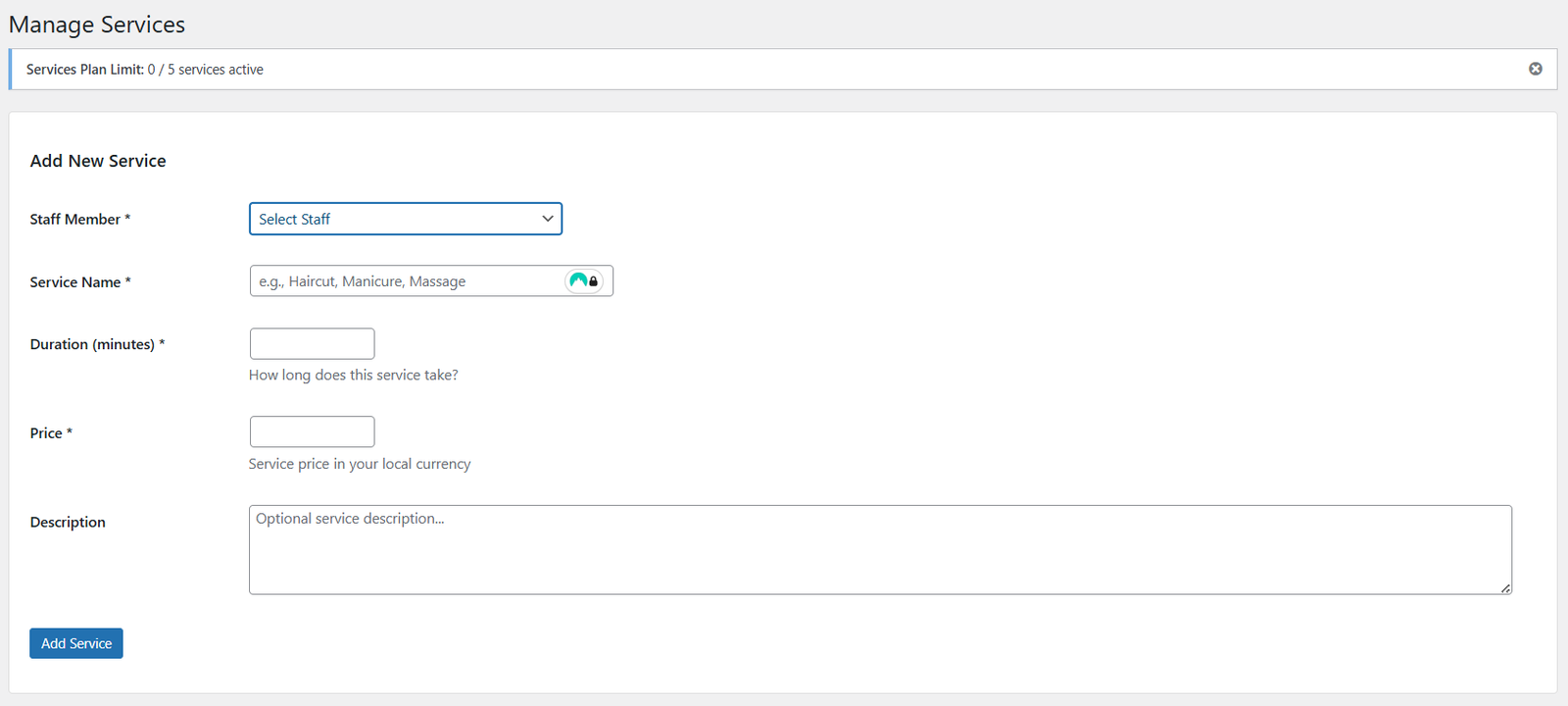
Enter all required service details
💡 Tip
Write clear, customer-friendly descriptions that explain what the service includes. This helps customers choose the right service and reduces confusion!
3 Save Your Service
Once you’re happy with all the details:
- Review the information to ensure accuracy
- Click the Add Service button at the bottom of the form
- Your service is now active and available for customers to book!
4 Manage Existing Services
Below the Add New Service form, you’ll find a list of all your current services. For each service, you can:
- Edit – Click the edit button to modify service details, pricing, duration, or description
- Delete – Remove services you no longer offer

Manage your existing services
This list provides a quick overview of all your services, making it easy to keep your offerings up to date.
5 Add More Services
To add additional services, simply repeat the process:
- Scroll back to the top of the page
- Fill in the new service details
- Click Add Service
⚠️ Free Plan Limitation
Free plan users are limited to 5 services. If you need to offer more than 5 services, you’ll need to upgrade to the Pro plan. Click the Upgrade button in the sidebar menu to unlock unlimited services and other premium features!
✅ Service Created Successfully!
Your service is now active and customers can book it through your booking form. The service will appear with its assigned staff member’s availability on your calendar.
What’s Next?
Now that you’ve created your services, here are your next steps:
- Create More Services – Add all the services your business offers (up to 5 on Free plan)
- Test Your Booking System – Make a test booking to see how customers will experience your services
- Set Up Your Booking Form – Configure and embed your booking form on your website
- Configure Notifications – Set up email notifications for new bookings