

Business Hours & Closures
Set Your Operating Schedule – Business hours define when your entire business is open for bookings. These store-wide settings apply to all staff members and control when customers can book appointments through your system.
📍 Accessing Hours & Closures
To configure your business hours, click on Settings in the left sidebar menu, then select the Hours & Closures tab.
1 Setting Business Hours
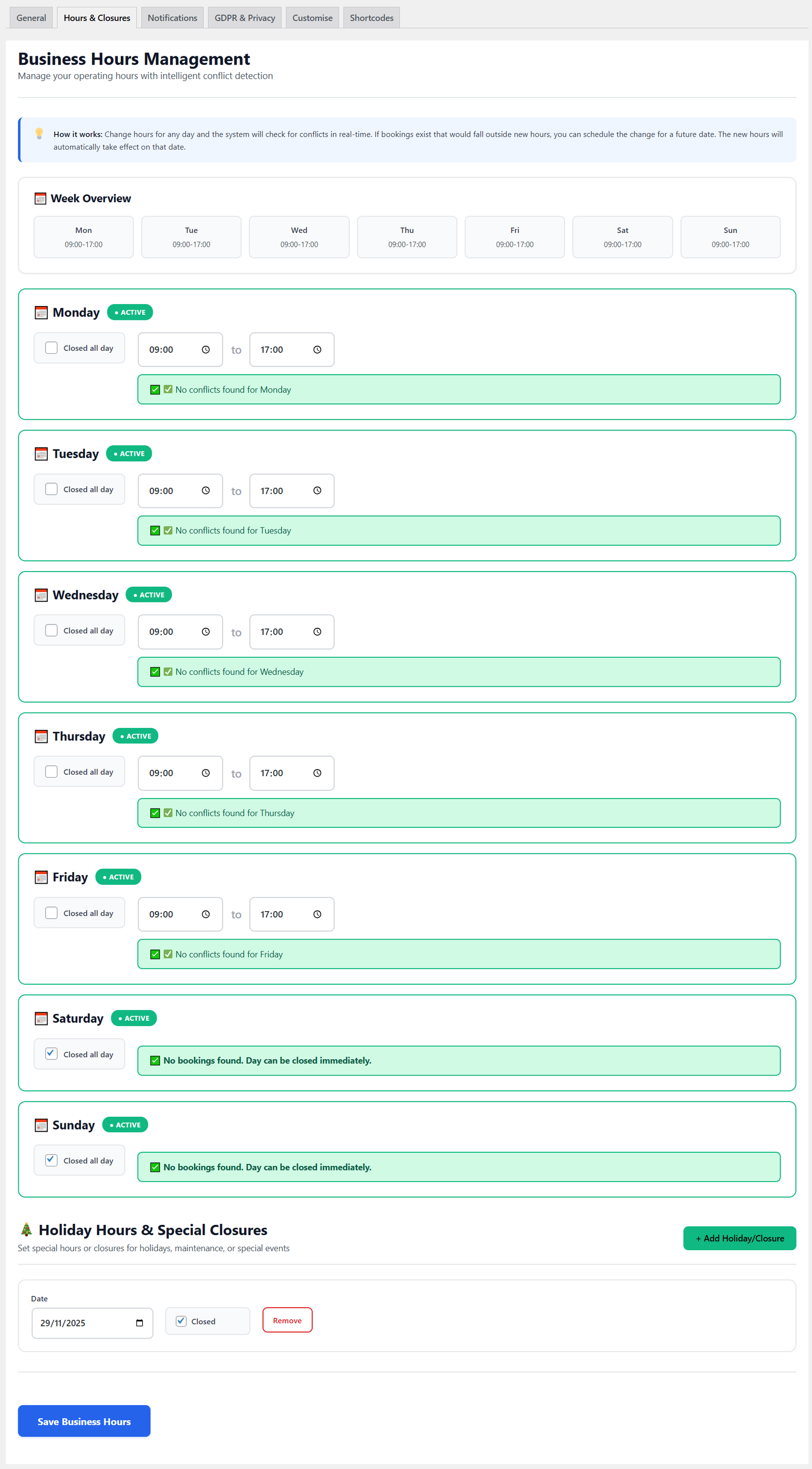
Business hours management with intelligent conflict detection
Configuring Your Weekly Schedule
Set your operating hours for each day of the week:
- Week Overview – See all seven days at a glance with current operating hours
- Toggle Days On/Off – Use the “Active” toggle to mark each day as open or closed
- Set Opening Time – Choose when your business opens each day
- Set Closing Time – Choose when your business closes each day
- Closed All Day Option – Check this box for days you don’t operate
🔄 How It Works
Change hours for any day and the system will check for conflicts in real-time. If bookings exist that would fall outside new hours, you can schedule the change for a future date. The new hours will automatically take effect on that date.
Intelligent Conflict Detection
The system automatically checks for scheduling conflicts:
- Real-Time Validation – When you change business hours, the system immediately checks if any existing bookings would be affected
- Conflict Warnings – If bookings exist outside your new hours, you’ll see a clear warning message
- Schedule Changes – You can schedule hour changes for a future date to avoid conflicts
- Automatic Application – Scheduled changes automatically apply on the specified date
⚠️ Important
Business hours are the master schedule for your entire booking system. Individual staff members cannot be available outside of these hours, even if their personal schedule allows it.
2 Holiday Hours & Special Closures
Manage days when your business is closed or has special hours for holidays, maintenance, or other events.
Adding a Closure
- Scroll to the “Holiday Hours & Special Closures” section
- Click on the Date picker and select the closure date
- Check the Closed checkbox to mark it as a full-day closure
- Click Add Holiday/Closure button
- The date will appear in your closure list
Managing Closures
- View All Closures – See a list of all scheduled closure dates
- Remove Closures – Click the “Remove” button next to any closure if plans change
- Multiple Closures – Add as many closure dates as needed
Common Uses for Closures
- Public holidays (Christmas, New Year’s, etc.)
- Staff training days
- Business maintenance or renovations
- Owner vacation days
- Special events affecting the whole business
- Emergency closures
📅 Plan Ahead
Add holiday closures well in advance to prevent customers from booking on days you won’t be open. This is especially important for major holidays when customers may try to book weeks ahead.
3 Business Hours vs. Staff Hours
Understanding the difference between business hours and individual staff hours:
Business Hours (This Page)
- Scope: Apply to the entire business and all staff members
- Purpose: Define when the business operates
- Effect: No staff can be available outside these hours
- Closures: Affect all staff simultaneously
Staff Hours (Manage Staff Page)
- Scope: Apply to individual staff members
- Purpose: Define when each staff member works
- Effect: Must fall within business hours
- Flexibility: Each staff member can have different schedules
Example Scenario
Business Hours: Monday-Friday, 9:00 AM – 6:00 PM
Staff Member Sarah: Monday-Thursday, 10:00 AM – 5:00 PM
Staff Member John: Monday-Friday, 9:00 AM – 3:00 PM
Result: Customers can book with Sarah between 10 AM-5 PM Mon-Thu, and with John between 9 AM-3 PM Mon-Fri. Both schedules fit within business hours.
4 Individual Staff Holidays PRO
⭐ Pro Feature
Individual staff holidays and time off management is a premium feature. To set holidays and custom hours for specific staff members, upgrade to the Pro plan. This allows each team member to have their own holiday schedule separate from business-wide closures.
With the Pro plan, you can manage individual staff availability through the Manage Staff page, including:
- Personal vacation days
- Sick days or personal time off
- Custom hours for specific days (starting late or finishing early)
- Staff-specific schedule adjustments
See the Adding Staff Members guide for details on configuring individual staff holidays (Pro plan required).
✅ Business Hours Configured!
Your business hours are now set. Customers will only be able to book appointments during your operating hours, and all holiday closures will prevent bookings on those dates. Don’t forget to click Save Business Hours to apply your changes!
Best Practices
- Review Regularly – Check your hours monthly to ensure they’re accurate
- Plan Holidays Early – Add closure dates for major holidays well in advance
- Communicate Changes – Inform customers of hour changes through your website or social media
- Match Staff Hours – Ensure individual staff schedules align with business hours
- Use Conflict Detection – Let the system help you identify scheduling issues before they become problems
- Update Closures – Remove or modify closure dates if your plans change