

How Can We Help?
General Settings
Configure Core System Settings – The General settings tab contains essential configurations that affect how your entire booking system operates. These are the foundational settings you’ll want to review when first setting up your system.
📍 Accessing General Settings
To access these settings, click on Settings in the left sidebar menu, then ensure you’re on the General tab.
General Settings Overview
The General tab contains core settings that affect your entire booking system:
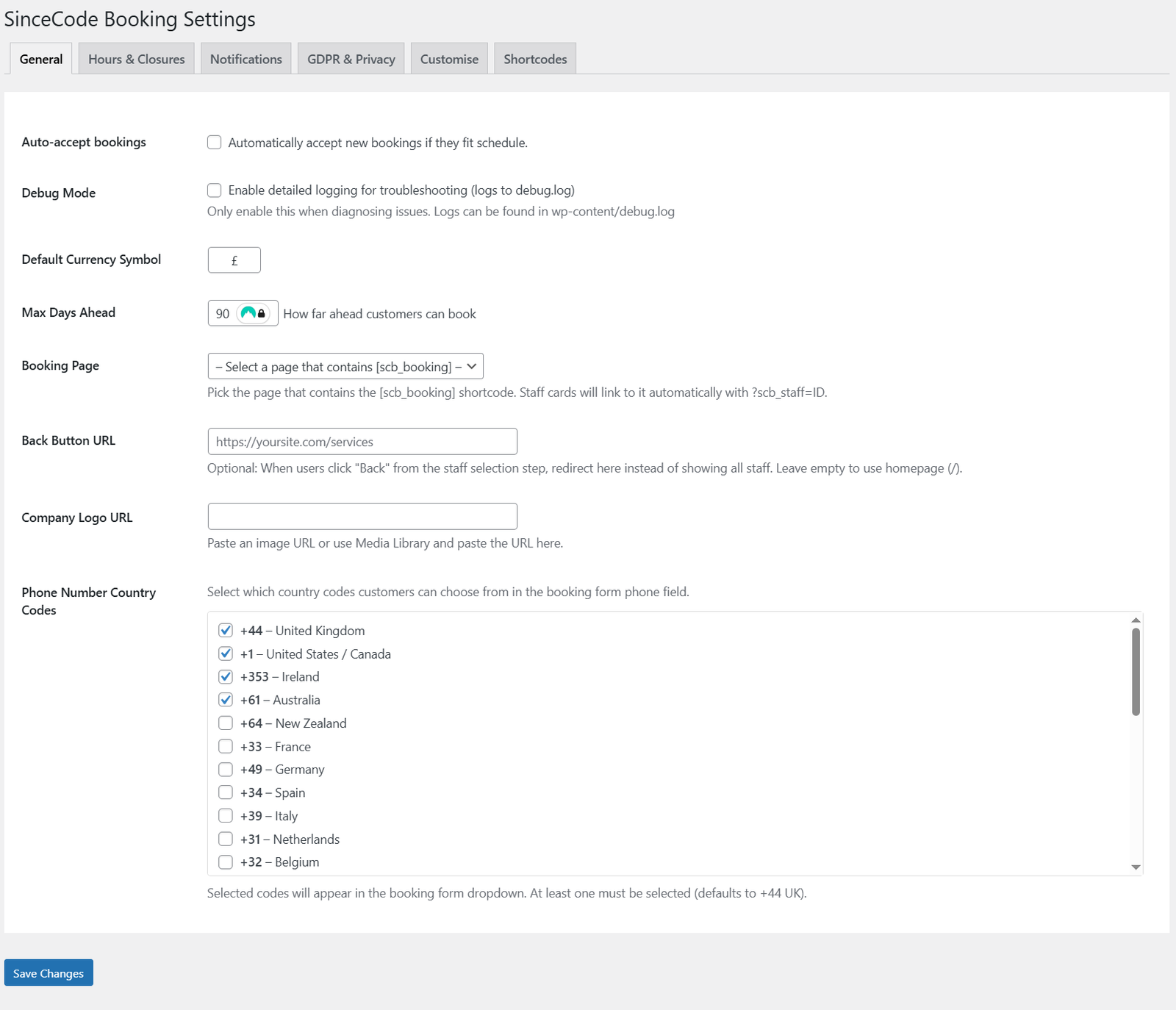
General settings configuration
Available Settings:
- Auto-accept Bookings
Automatically accept new bookings if they fit the schedule. When enabled, bookings are instantly confirmed without manual approval. - Default Currency Symbol
Set the currency symbol that will display for all pricing (default: £). - Max Days Ahead
How far in advance customers can book (in days). This prevents bookings too far into the future. - Booking Page
Select the page that contains the [scb_booking] shortcode. Staff cards will link to it automatically with ?scb_staff=ID parameter. - Back Button URL
Optional: When users click “Back” from the staff selection step, redirect here instead of showing all staff. Leave empty to use homepage (/). - Company Logo URL
Paste an image URL or use Media Library and paste the URL here. This logo appears in your booking forms. - Phone Number Country Codes
Select which country codes customers can choose from in the booking form phone field. At least one must be selected (defaults to +44 UK).
⚠️ Remember to Save
After making changes to any settings, always click the Save Changes button at the bottom of the page to apply your updates.
What’s Next?
After configuring your general settings:
- Set Business Hours – Configure your operating hours and closures
- Configure Notifications – Set up email and SMS alerts
- Review GDPR Settings – Ensure data protection compliance
- Customize Your Forms – Match your booking forms to your brand