

Embedding Forms with Shortcodes
Display Your Booking System Anywhere – SinceCode Booking uses WordPress shortcodes to embed booking forms and displays on your website. This guide will show you how to use shortcodes to add booking forms, staff showcases, calendars, and service lists to any page or post.
1 Access Shortcode Reference
To view all available shortcodes and their parameters:
- From your dashboard, click on Settings in the left sidebar menu
- Click on the Shortcodes tab at the top of the page
- You’ll see a complete list of shortcodes with their customisation options
💡 About Parameters
Parameters allow you to customize how shortcodes display. Each shortcode has its own set of optional parameters that control things like layout, which staff or services to show, and visual options. You can find staff and service IDs in the Manage Staff and Manage Services pages.
2 Adding Shortcodes to Your Pages
To embed a booking form or other element on your website:
- Navigate to the page or post where you want to display the booking form
- Open your block editor (Gutenberg, Elementor, or your preferred page builder)
- Add a shortcode block or element
- Paste the shortcode you want to use
- Save and preview your page
The shortcodes reference page showing available options
3 Main Booking Form Shortcode
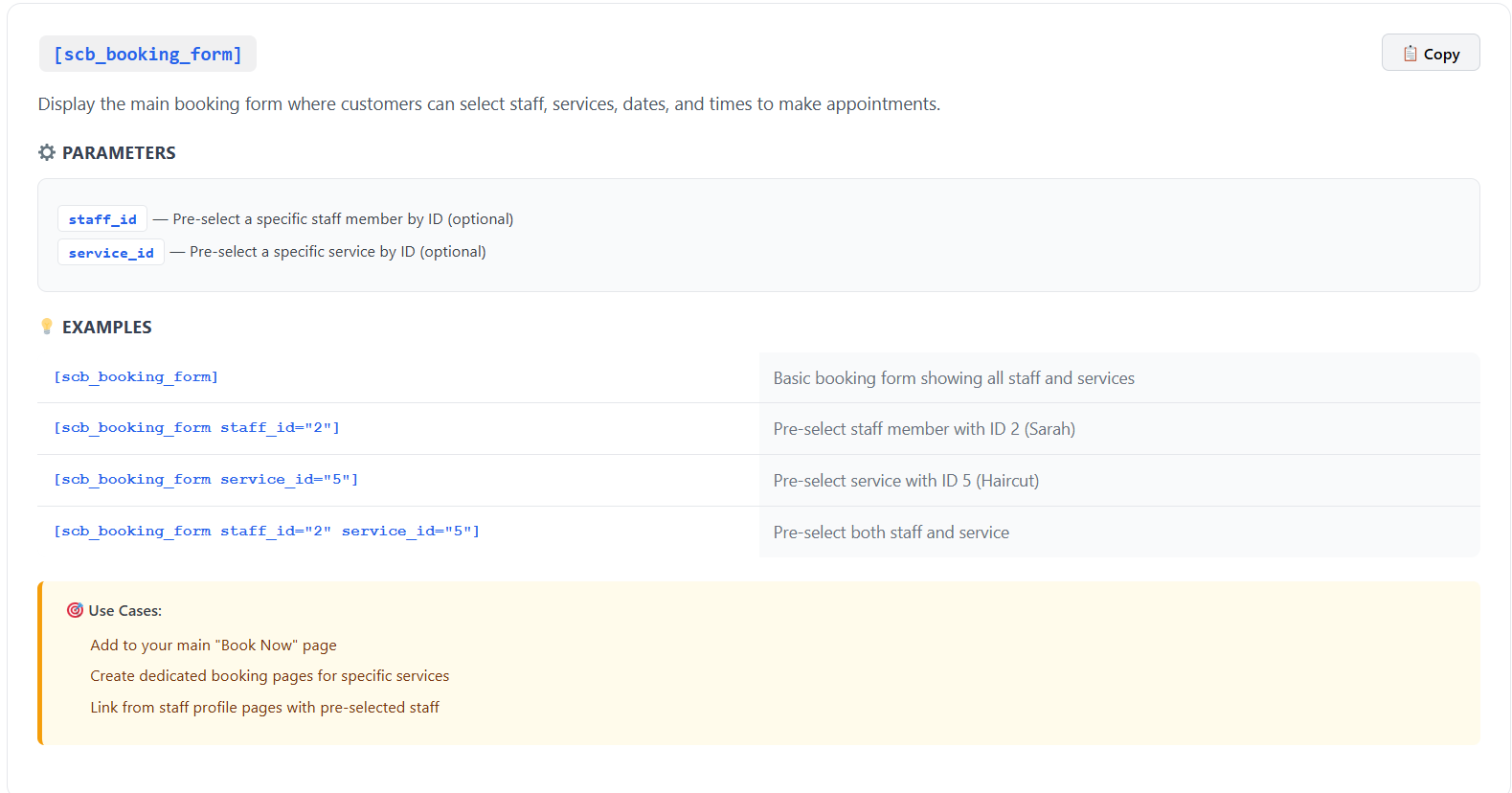
[scb_booking_form]This is the main shortcode that displays your complete booking form. Customers use this form to select services, choose staff members, pick dates and times, and submit their booking requests.
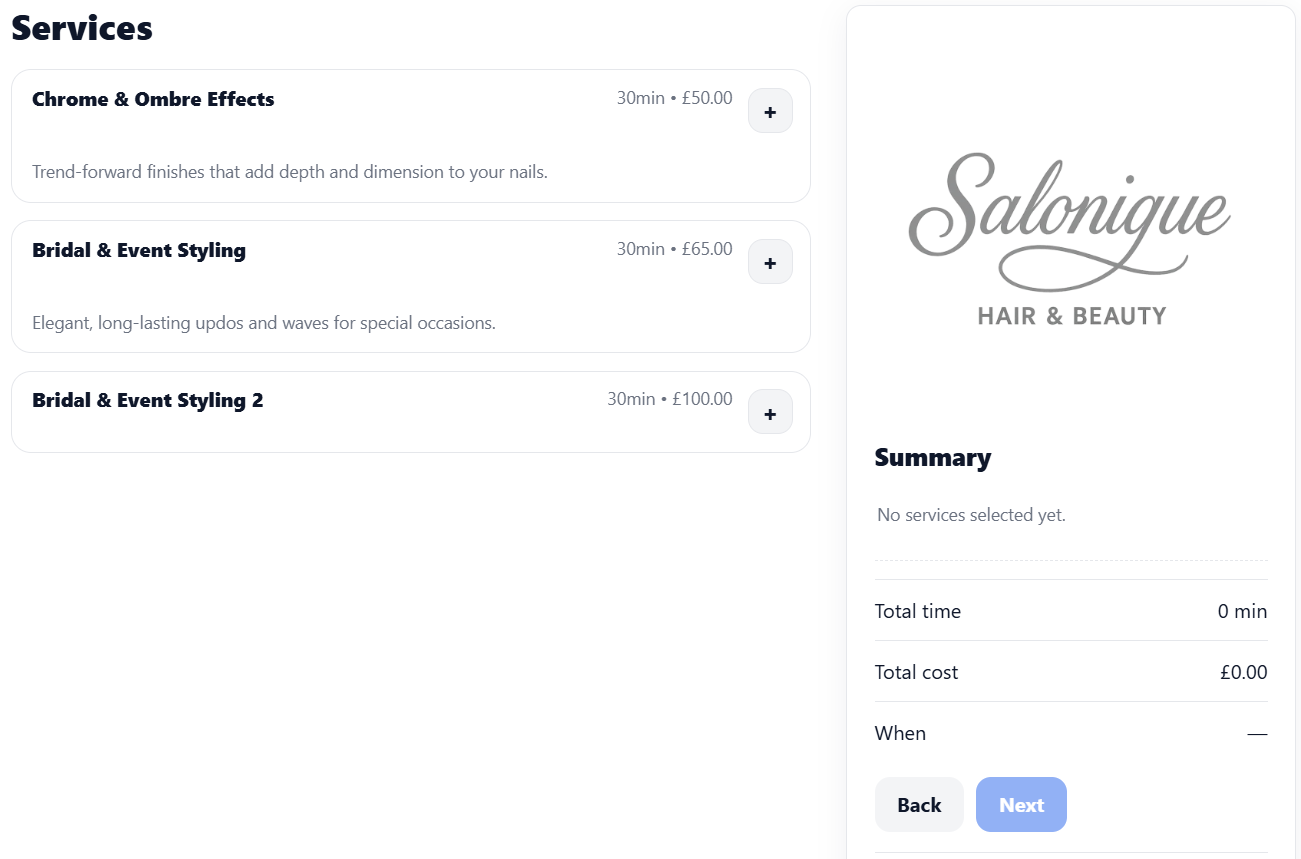
The [scb_booking_form] shortcode embedded on a page
Key Features:
- Multi-step booking process for a smooth customer experience
- Service selection with descriptions and pricing
- Staff member selection
- Date and time picker showing real availability
- Customer information collection
- Confirmation and notification system
4 Staff Showcase Shortcode PRO
⭐ Pro Feature
The Staff Showcase shortcode is available with the Pro plan. Upgrade to display beautiful staff member profiles on your website!
[scb_staff_showcase]Display a beautiful, responsive grid of your staff members with photos, bios, services, and “Book” buttons. Perfect for “Meet Our Team” pages.
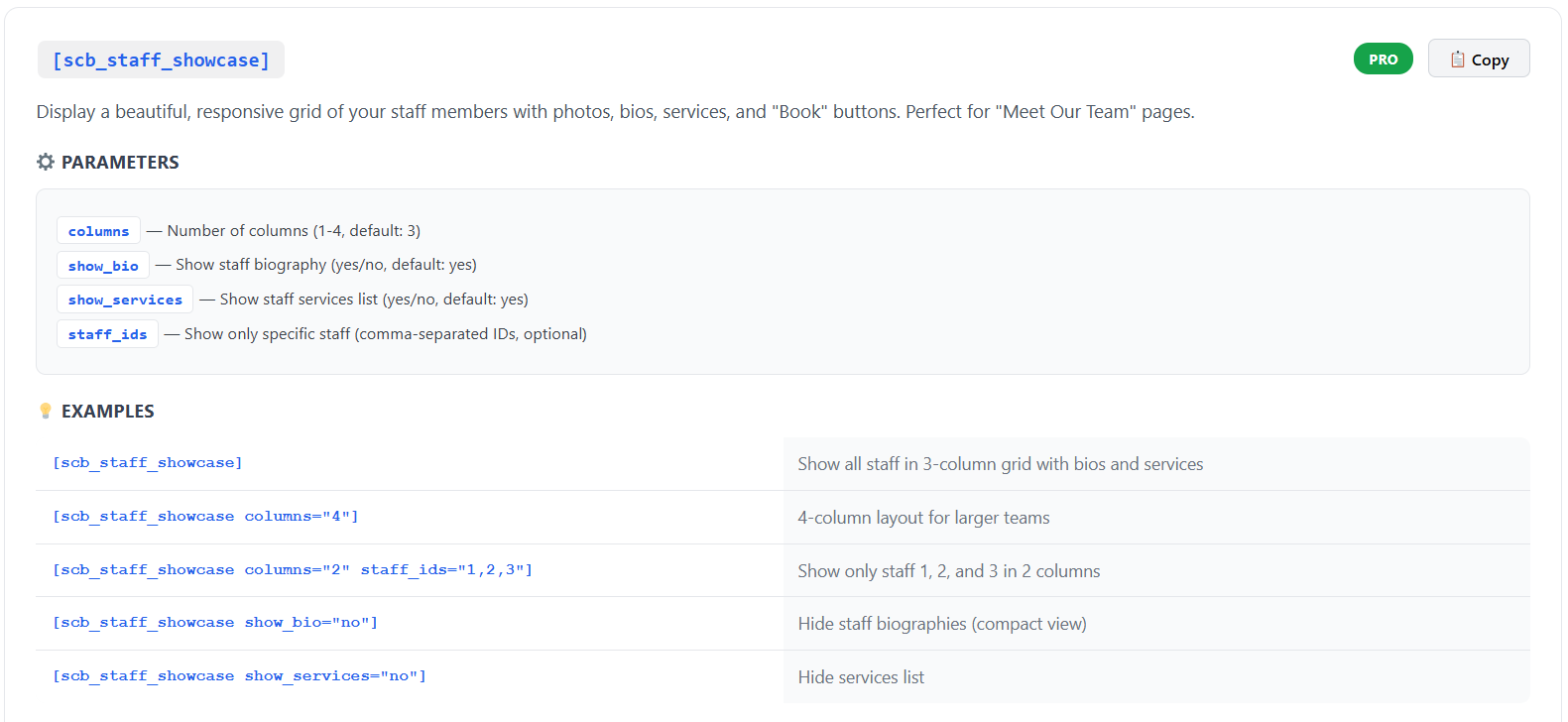
Staff showcase shortcode with available parameters
Available Parameters:
- columns – Number of columns (1-4, default: 3)
- show_bio – Show staff biography (yes/no, default: yes)
- show_services – Show staff services list (yes/no, default: yes)
- staff_ids – Show only specific staff (comma-separated IDs, optional)
Example Usage:
[scb_staff_showcase columns="4"][scb_staff_showcase columns="2" staff_ids="1,2,3"][scb_staff_showcase show_bio="no"]5 Calendar Shortcode PRO
⭐ Pro Feature
The Calendar shortcode is available with the Pro plan. Upgrade to display interactive availability calendars on your website!
[scb_calendar]Display an interactive monthly calendar showing booking availability at a glance. Customers can see busy vs. available dates and click to book directly from the calendar.
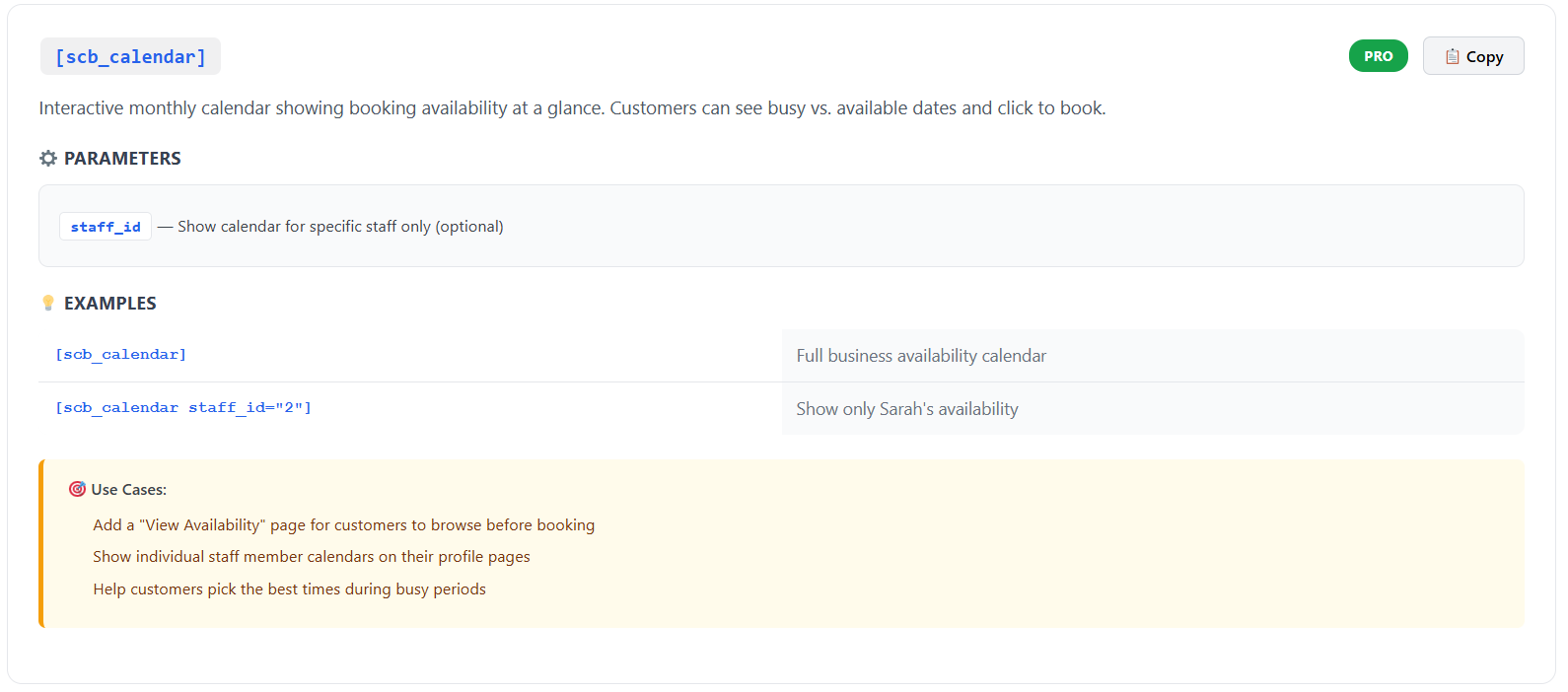
Calendar shortcode with available parameters
Available Parameters:
- staff_id – Show calendar for specific staff only (optional)
Use Cases:
- Add a “View Availability” page for customers to browse before booking
- Show individual staff member calendars on their profile pages
- Help customers pick the best times during busy periods
Example Usage:
[scb_calendar] – Full business availability calendar[scb_calendar staff_id="2"] – Show only Sarah’s availability6 Services List Shortcode PRO
⭐ Pro Feature
The Services List shortcode is available with the Pro plan. Upgrade to display professional service listings on your website!
[scb_services]Display a professional list or grid of your services with descriptions, durations, and pricing. Perfect for creating a “Services & Pricing” page.
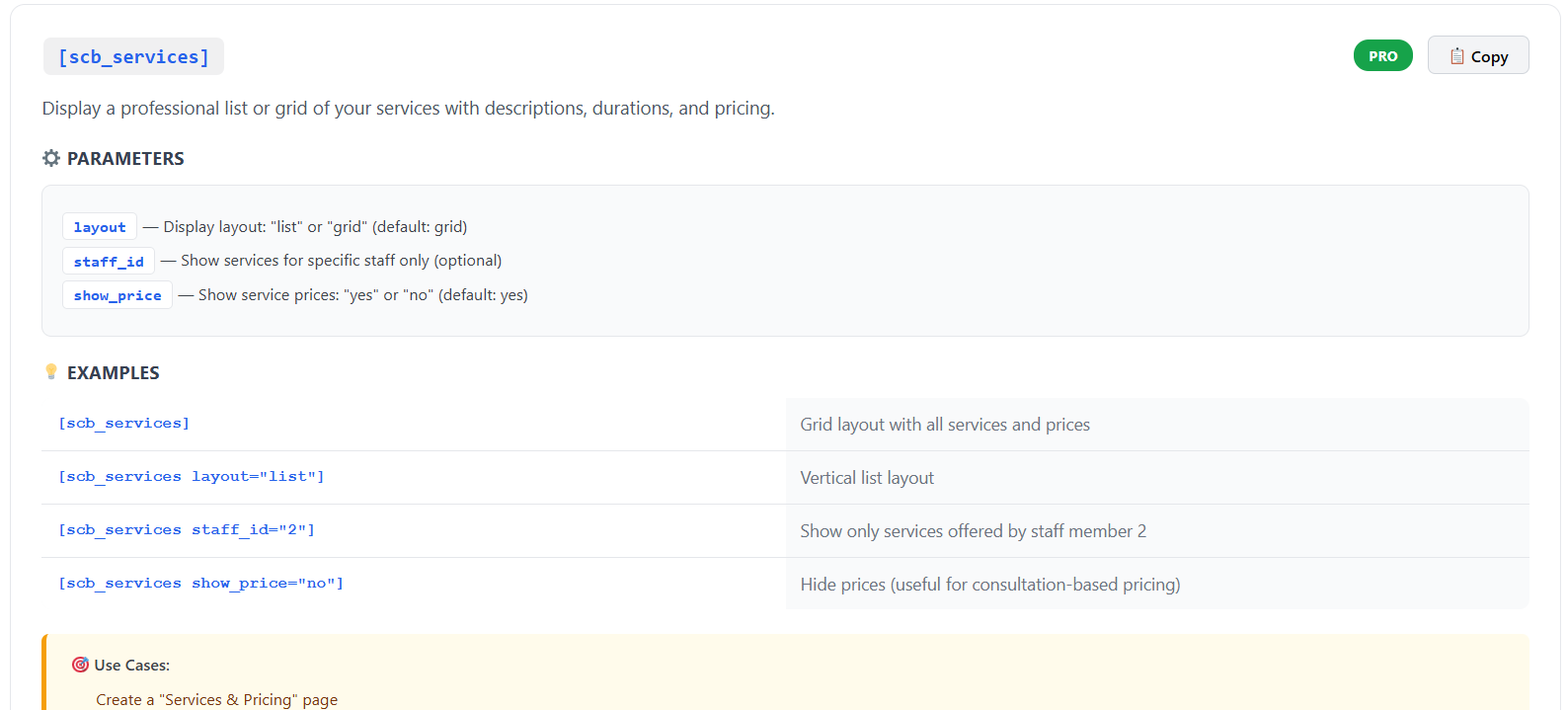
Services shortcode with available parameters
Available Parameters:
- layout – Display layout: “list” or “grid” (default: grid)
- staff_id – Show services for specific staff only (optional)
- show_price – Show service prices: “yes” or “no” (default: yes)
Use Cases:
- Create a “Services & Pricing” page
- Show services offered by specific staff members
- Hide prices for consultation-based pricing
Example Usage:
[scb_services] – Grid layout with all services and prices[scb_services layout="list"] – Vertical list layout[scb_services staff_id="2"] – Show only services offered by staff member 2[scb_services show_price="no"] – Hide prices (useful for consultation-based pricing)💡 Finding Staff and Service IDs
When you need to use staff_id or service parameters, you can find the ID numbers by visiting the Manage Staff or Manage Services pages. The IDs are typically displayed in the URL or in the list of items.
✅ Ready to Go!
You now know how to embed booking forms and display elements anywhere on your WordPress site using shortcodes. Simply copy the shortcode you need, paste it into your page editor, and customize it with parameters if desired!
What’s Next?
Now that you know how to embed your booking system, consider:
- Test Your Booking Form – Make a test booking to ensure everything works smoothly
- Customise Your Design – Adjust colors and styling to match your brand
- Add Multiple Shortcodes – Create a comprehensive booking experience with staff profiles, services, and calendars
- Upgrade to Pro – Unlock the Staff Showcase, Calendar, and Services shortcodes for a complete booking website